Practical walkthrough · Updated 2 October 2026
Turn note images into a readable PDF on your phone
Practise a two-page A4 export using original example images, then check page order, orientation, readability and file size.
Photographed notes are useful only if the final reader can see the writing. Capture one page at a time, keep the page flat, avoid shadows and include its edges. A sharp, well-lit photo usually needs less corrective work than a blurry one. Verify orientation before assembling the document.
Practise with the example images
These images come from our original fictional sample assignment. They are rendered page images, not photographs or personal records. They demonstrate page order and an A4 export without asking you to use private notes.
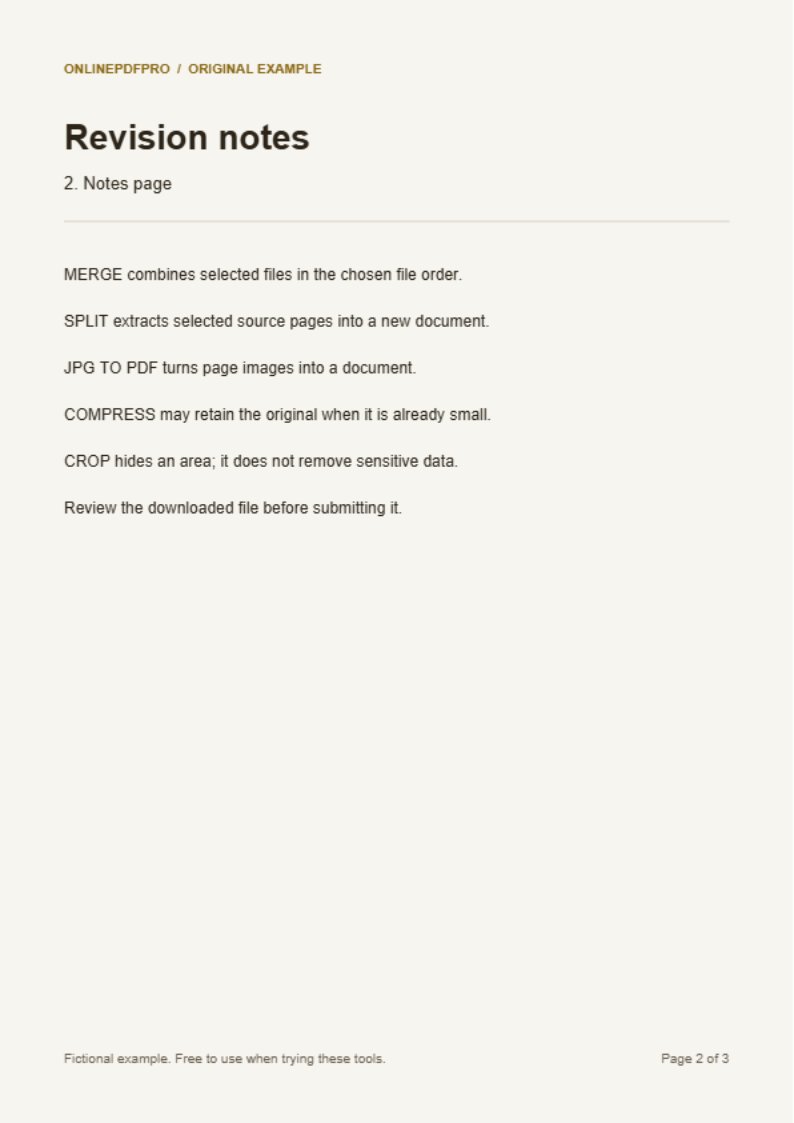
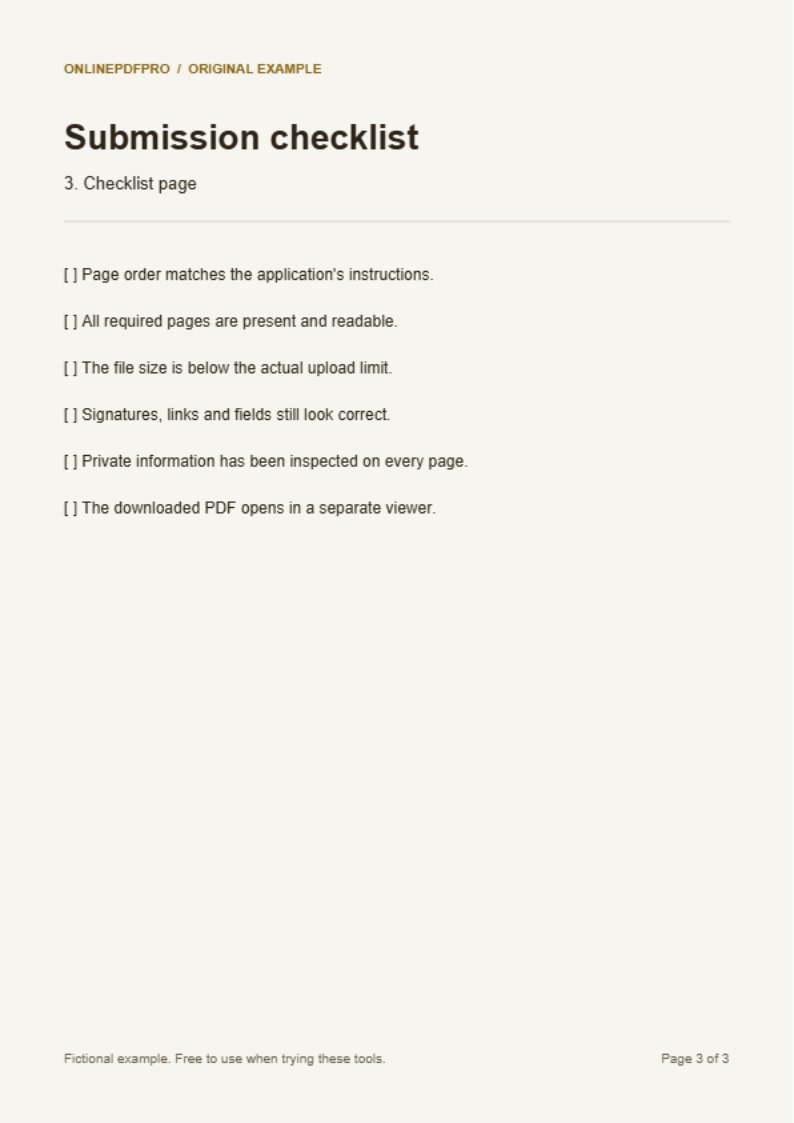
- Save both JPG images, then open JPG to PDF.
- Select both files. Put the notes page before the checklist page in the image list.
- Choose A4 for this exercise and create the PDF.
- Download and reopen it. Confirm there are two pages in the selected order, with readable text and no missing edges.
Prepare your own photos
Remove unnecessary desk/background borders with Image Crop, while leaving a margin around the writing. Rotate the source image if it is sideways. Save the cropped image and inspect it before conversion; cutting through a heading cannot be repaired by placing the image in a PDF.
Use JPG or PNG for this workflow. If your phone provides HEIC, HEIC to JPG can create a JPEG first. That converter uses the first image in multi-image files and does not retain camera metadata. If a file cannot be decoded, keep the original and try exporting a JPG from your device.
Choose a page layout deliberately
A4 is useful when the recipient expects standard pages, but it is not a requirement for every use. The converter places each image on a page; it cannot recover handwriting that was out of focus in the source. A long or unusually shaped image may have unused space when fitted onto A4.
What the PDF contains
The resulting document contains page images. It does not automatically create searchable text. If you need selectable text from an image, try Image to Text and inspect the OCR result carefully. Language, resolution and handwriting affect recognition; formulas and names deserve special attention.
Check before sending
- Zoom into the smallest writing rather than judging only the thumbnail.
- Check page count, orientation and order in another PDF viewer.
- Check file size against the recipient's actual limit. Image-heavy files can be large.
- Keep the original photos. If compression is needed, read the compression tradeoffs before reducing quality.
This image-to-PDF workflow runs in your browser. Older phones can struggle with many high-resolution pictures; process a smaller batch if the browser becomes unresponsive.